
ChatGPT Can Now Control Your Browser: Fill Forms, Send Messages, and Take Over Your Tabs
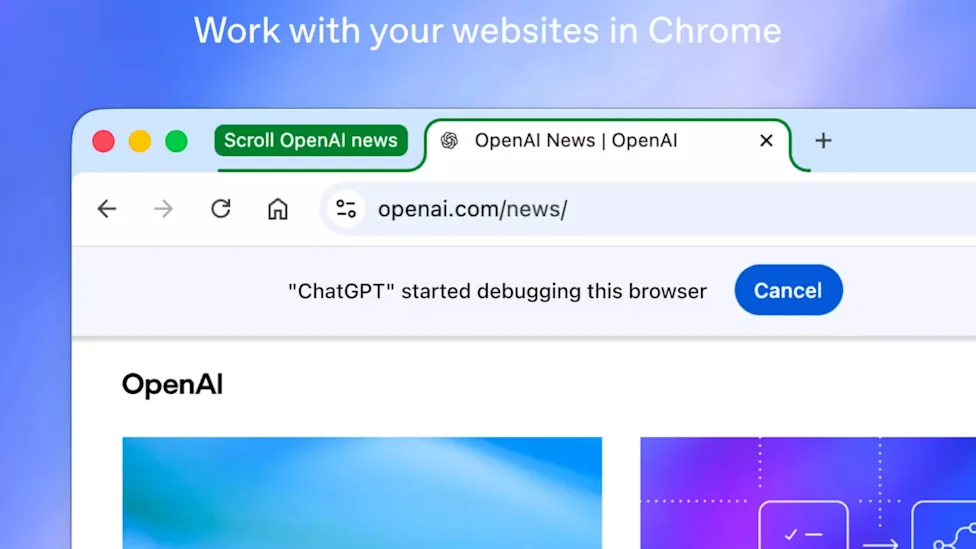
Imagine comparing prices on four shopping websites. Then you notice that the AI in your browser is doing more than reading the pages. It is filling out a shipping form on one of them. This is the change OpenAI announced on October 15, 2026. The ChatGPT browser extension now has two separate modes: Chat, which reads your open tabs and uses what it finds to answer questions, and Work, which can take actions in your browser for you.
Two Modes, One Clear Divide
The update clearly separates reading websites from taking action on them.
Chat mode is the simpler option. You can ask it to look at your open tabs and compare product details, delivery times, or return rules across several shopping websites. It reads the pages and gives you a clear answer.
Work mode can do much more. Reports about OpenAI's announcement say it can fill out forms using information from open webpages or files saved on your computer. It can also send messages, download files, and organize open tabs into groups by topic.
Reports confirm that users can check completed forms before they are submitted. However, the reports do not show that every browser action requires users to approve it manually. This is an important difference to consider before giving the tool access.
OpenAI also added a shortcut. According to reports, typing "@Chrome" in the ChatGPT website or app lets you ask it to perform browser tasks directly. You do not need to open the extension's side panel.
ChatGPT has a new Chrome extension that can read and control your tabs. Here's what you need to know.
OpenAI's ChatGPT account announced that it is bringing computer control to people who use Chrome. The first upgrade lets ChatGPT use your open tabs to make answers… https://t.co/yb2zW8QEmO pic.twitter.com/Q4OvL5T9WN— AGTP (@AGTPinsights) October 15, 2026
What You Need to Know Before Granting Access
The extension asks for permission before taking certain actions, but you should think carefully before approving these requests.
The extension asks for permission before it accesses your browser history, visits new websites, or handles files. Reports say you can allow access once, allow it for one website, allow it for all websites, or refuse it.
You can also limit the extension to certain tabs. This reduces how much information it can use for a task. Reports about OpenAI's announcement name Gmail, LinkedIn, and Salesforce as examples of services the tool can use through your signed-in accounts if you grant broad access.
That means every permission request matters. Work mode can send messages and fill out forms. If you give it broad access, it may be able to act through accounts where you are already signed in, including services you use often.
There are a few other limits to know about. The extension works with Chrome, Edge, Brave, and Opera. Reports also say it may work with Vivaldi, but sources do not fully agree on whether Vivaldi is supported. According to available reports, Firefox and Safari were not included when the extension first launched. It is also unclear whether every Work-mode feature is available on all ChatGPT plans. Sources disagree about whether browser control requires a paid plan.
You set it up through the ChatGPT desktop app. Open Settings, choose Computer Use, install the extension for the browser you want to use, and then select that browser in a ChatGPT Work or Codex conversation.
The Bigger Picture
This update lets ChatGPT do more than read websites. It can now take actions on them.
This is a clear step in OpenAI's effort to turn ChatGPT from an assistant that answers questions into an agent that can do tasks. It is less like asking Siri to set a timer and more like letting someone use your browser to get things done. The important part is deciding exactly what they are allowed to do.
How well Work mode handles tasks with several steps, and how safely its permission controls work in real life, will help decide whether it becomes a useful productivity tool or creates problems. That is still an open question. For now, much depends on how carefully you read each permission request before clicking Allow.