
Now ChatGPT Chrome Extension Can See and Analyze the Content in Open Tabs
OpenAI has updated its ChatGPT Chrome extension so ChatGPT can read information from multiple open browser tabs and perform tasks in the browser.
This update lets ChatGPT do more than answer questions about one webpage. It can now compare information, fill out forms, send messages, and organize browser tabs.
The update was announced in India on October 16. OpenAI says the extension is available on all ChatGPT plans, so users do not need a separate paid plan just to use the extension.
The ChatGPT Chrome extension has Chat and Work modes. These modes let users study open tabs, collect information, manage tabs, download files, and group webpages.
OpenAI's examples include comparing three couches by their size, material, delivery time, and return policy. Users can also ask ChatGPT to explain an article in simple words or compare prices on different websites. This means users do not have to copy information from websites into a chat window as often.
ChatGPT Chrome Extension Can Analyze Open Tabs
The extension also brings ChatGPT into a browser tab. Users can view their conversation history while browsing other pages. According to the Chrome Web Store listing, the extension connects browser tasks with ChatGPT on desktop and the web. It can also work with connected files stored on the user's device when that feature is available.
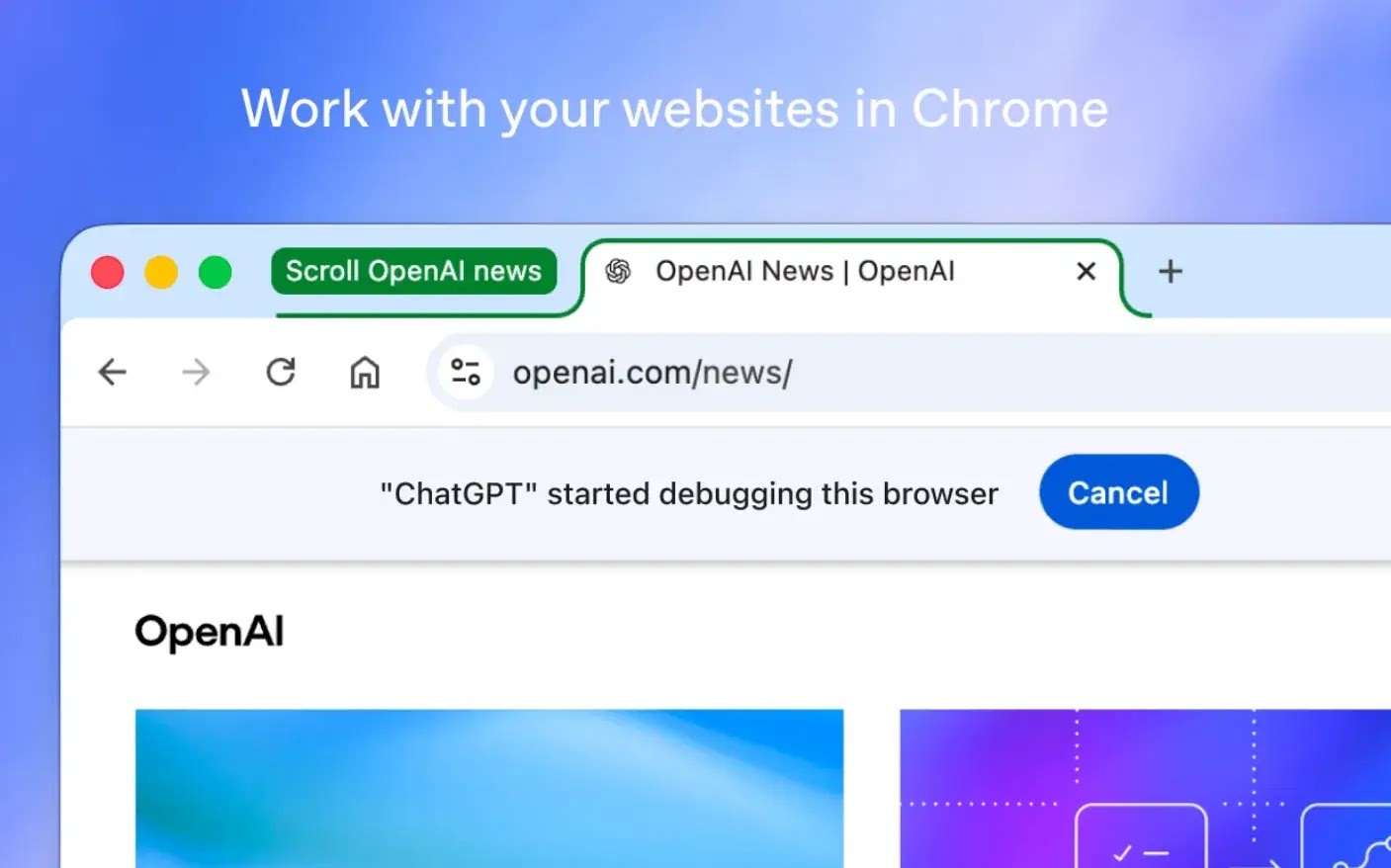
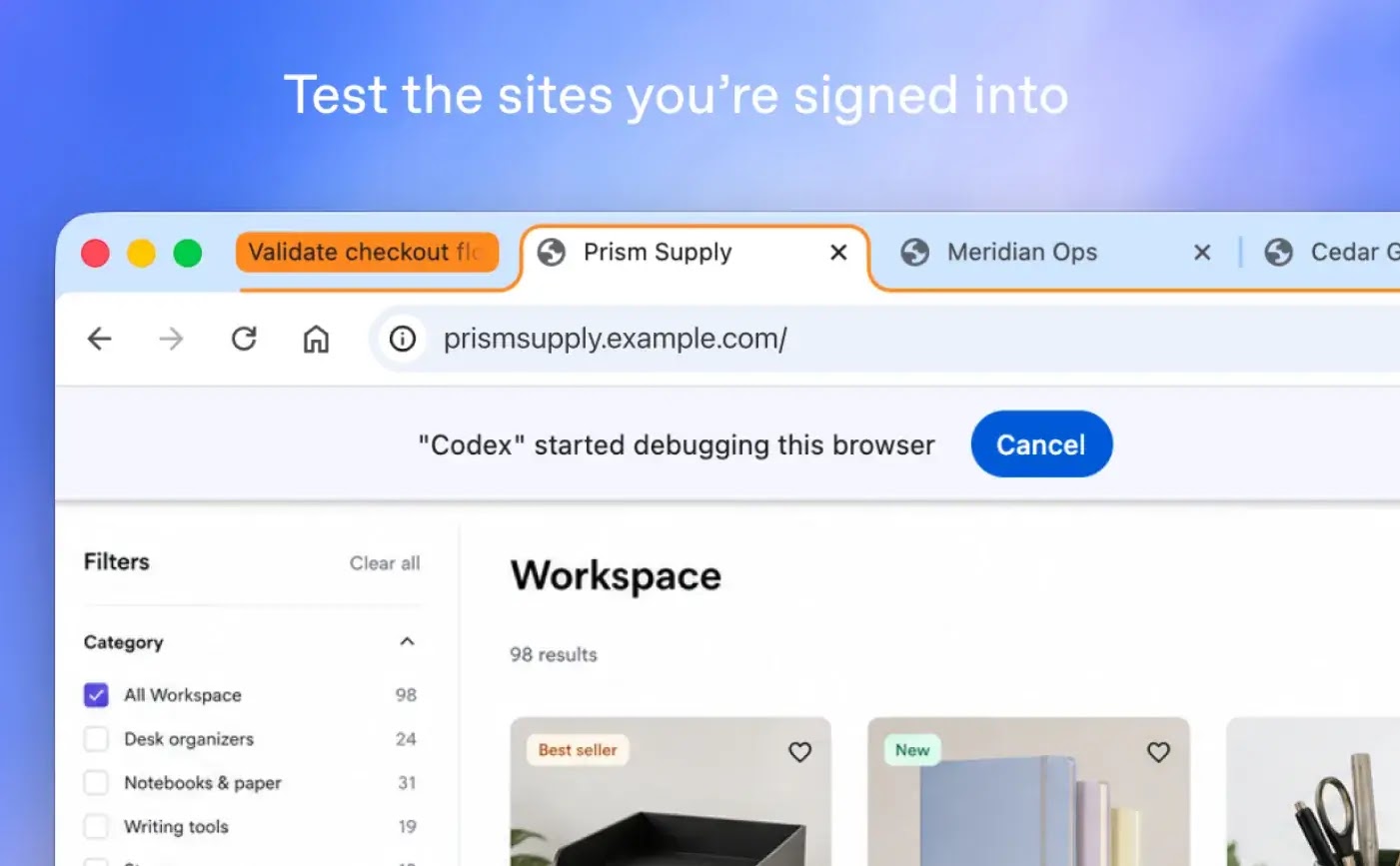
OpenAI says tasks can run in the background without interrupting the webpage the user is currently viewing. Supported tasks include researching websites where users are signed in, editing documents, working with spreadsheets, entering data, testing websites, and downloading many files at once. The listing also says the extension works with Microsoft Edge, Brave, and Opera.
Some big upgrades for Chrome users today! We’re bringing computer-use features to anyone who uses Chrome.
— ChatGPT (@ChatGPT) October 15, 2026
First, ChatGPT can now use your Chrome tabs to give more useful answers and help you get things done.
If you’re using Chat, it can look across your open tabs and… pic.twitter.com/c99ZSugDcI
The main security concern is what the extension can access. When ChatGPT works on websites where users are signed in, it may come across private messages, business records, or other sensitive information. For this reason, it is important to limit what each task can access, especially when using company accounts or handling customer information.
The extension's privacy information in the Chrome Web Store lists several types of data that may be handled. These include website content, browsing history, user activity, personal messages, login and authentication information, health information, and financial information. These categories describe the types of data covered by the disclosure. They do not prove that every type of data is collected during every task.
OpenAI says ChatGPT will ask for permission before using browsing history or uploading and downloading files. However, the store listing does not confirm that the extension asks for separate approval before every browser action.
Users should not assume that these specific permission promises cover every action the extension can take. Reading webpage content also creates a risk called prompt injection. This happens when a webpage contains instructions meant to trick an AI assistant into ignoring the user's request and doing something else.
Cybersecurity News has previously reported on OpenAI's efforts to make ChatGPT Atlas safer against prompt injection. That report was about Atlas. It does not confirm that this Chrome extension has the same problem or any known flaw of this kind.
It is also important to install the extension from a trusted source. Earlier reports about harmful Chrome extensions stealing ChatGPT conversations showed how fake AI tools can use browser access to steal information. Users should use OpenAI's official download link and check who published the extension instead of trusting a familiar name or logo alone.
When using the extension at work, users should give it limited tasks, restrict access to websites where they are signed in, and carefully check permission requests. These steps can help protect information when an assistant can both read webpages and take actions based on what it finds.